Sales Report Video: Your Numbers, With a Story Arc
A sales report video is the same chart on the same data with one difference: it gets watched. Upload one screenshot of your revenue chart — Excel, Salesforce, Looker, or straight out of the reporting deck — and get an 8-15 second clip where the line sweeps forward month by month, the target line holds its ground, and the final number lands with a callout. Built for weekly reviews, monthly recaps, and the Slack channel where static charts go to die.
Why a video instead of the chart itself?
A static revenue chart makes the reader do the work: find the axis, trace the line, notice the target, draw the conclusion. In a channel with 200 unread messages, that work does not happen. A video sequences it — build-up month by month, the fixed target creating tension, the payoff callout on the final figure — in ten seconds, with sound. The information is identical; the completion rate is not.
Sales teams already know this: the same monthly numbers that get skimmed as a screenshot get finished when they move. What used to require an After Effects template or a Loom recording session now starts from the chart you already exported.
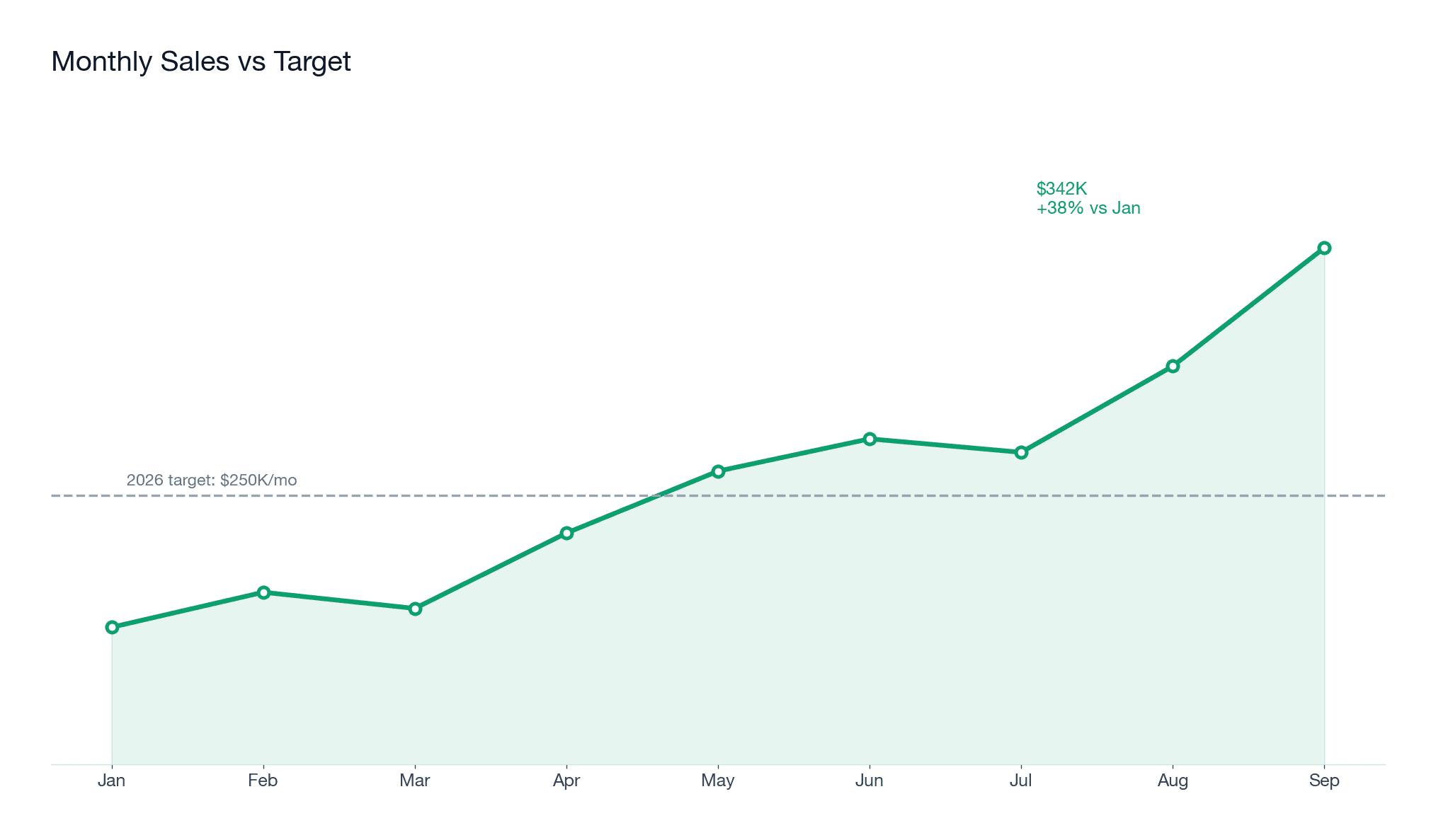
Real sample: monthly sales vs target
A real run from this generator family, made on 2026-10-22 with fake data. Input screenshot on the left, unedited output on the right.
How to make a sales report video
- Screenshot the revenue chart from wherever it lives — Excel, Salesforce, Looker, Clari, or the deck. PNG, JPG, or WEBP, up to 20MB. One time series with a clear payoff works best.
- Upload it and check the motion prompt. The default is the executive-update arc — line sweeping forward, target fixed, callout pulsing on the final number, every label locked in place. Edit the wording to change the emphasis (for example, direct the camera to the target-crossing moment).
- Pick the format and create. 16:9 for Slack, email, and decks; 9:16 for LinkedIn or social; 8, 10, or 15 seconds at 480p or 720p. A 10-second 720p render costs 640 credits; the button shows the exact price before you spend it.
The motion prompt we use
This is the exact prompt pre-filled in the generator — copy it if you want to run it somewhere else:
Turn this sales report into a short executive update video: the revenue line sweeps forward period by period with a soft glow, the target line stays fixed, and a callout badge gently pulses at the final point. Keep every number and label exactly as shown - no new elements. Clean corporate infographic style, smooth easing.
It encodes the three-beat arc — sweep, hold, callout — and the constraint that every month and number stays exactly as shown.
Charts that make the best sales videos
- Revenue or MRR by month with a target line — the default arc was written for exactly this.
- Quota attainment by rep or by quarter, where the final bar pays off the comparison.
- Pipeline value trending week by week inside a quarter.
- Churn or NRR heading in the good direction — downward churn sweeps read as wins too.
- One series, not five: if the chart has four overlapping lines, split it or pick the one that matters.
Video update vs static attachment
Sales report video
- Sequenced story: build-up, tension against target, payoff number.
- Watchable in Slack, email, LinkedIn, and at the top of a review call.
- Same chart, same branding — screenshot in, video out, minutes later.
- Needs one verification replay against the source chart.
Static chart attachment
- Precision artifact — the right home for audited and board-certified figures.
- Scannable in a document, searchable in a thread.
- Zero drift risk, zero render time.
- Competes for attention against every other image in the channel.
The working pattern teams land on: video opens the update, static chart anchors the appendix.
Accuracy boundary for revenue numbers
This is an AI render of your screenshot, not a spreadsheet recalculation — the model animates the image but does not recompute anything. The prompt holds every month and number in place, and clean inputs come out faithful, but a digit can drift during fast motion. Replay the finished clip against the source chart before it reaches your team, and keep this tool away from audited financial statements, certified board figures, and anything regulated. It is built for momentum updates, not for the record.
Sales report video FAQ
What is a sales report video?
A sales report video is your sales report as a short clip instead of a static chart: the revenue line sweeps forward month by month, the target line holds steady, and the final number gets a callout and its moment. Sales teams use them for weekly reviews, monthly recaps, and Slack or email updates — anywhere a chart gets scrolled past but a video gets watched.
How do I make one from my sales chart?
Screenshot your revenue chart, upload it above, and press create — the motion prompt is pre-filled for the executive-update style: line sweeping period by period, target fixed, callout pulsing at the end. A 10-second 720p video costs 640 credits; 480p starts at 280. Generation takes a few minutes and the download is a normal MP4.
What sales metrics work well as a video?
Time series with a payoff: monthly revenue against target, MRR or ARR growth, pipeline value by week, quota attainment by quarter, churn trending down. The format is built for one line with a story — one number beating another. Comparison grids, huge pivot tables, and 40-column CRM exports do not; keep those as attachments.
Where do teams post these videos?
The three standard slots: the #sales or #revenue Slack channel for weekly updates, email and LinkedIn for monthly recaps, and the start of a review call or all-hands as a 10-second opener. 16:9 fits slides and email; 9:16 exists for social posts; 1:1 sits neatly in chat threads.
Will the numbers in the video match my report?
They should, and you must check once before it goes out. The prompt orders the model to keep every number and label exactly as shown, and clean screenshots come out faithful — but this is an AI render, not a spreadsheet recalculation. Replay the clip against the source chart before stakeholders see it, and never use it for audited figures, board decks with certified numbers, or regulated disclosures.
Can I use my company's chart template from Excel, Salesforce, or Looker?
Yes — anything you can screenshot. Excel revenue charts, Salesforce dashboards, Looker tiles, Clari or Outreach views, or a chart already in your reporting deck. The generator animates the image, so your branding, colors, and number formatting stay exactly as your company styles them.
Does it have sound?
Videos from the generator on this page are rendered on Seedance 2.5 with audio on, so the clip ships with a light business soundtrack. For a silent board-room or email version, mute the MP4 in any editor — nothing in the animation depends on the audio track.
How is this different from the animated chart maker page?
Same engine, different choreography. The animated chart maker grows bars one by one; this page's prompt is written for the sales-report arc — a line sweeping period by period, a fixed target line, and a pulsing callout on the final number. If your report is bar-shaped, use that page; if it is a line with a target, use this one.
Related pages: bar-shaped reports animate best on the animated chart maker page; full dashboards and KPI panels on the data visualization maker page.
ImageToVideoAI.topis an independent generator, not affiliated with TikTok, ByteDance, Kuaishou, or any social platform. Only upload photos you own or have permission to use, and make sure everyone in a photo is okay with becoming the effect. Clips are AI-generated content — follow each platform's AI-content labeling rules when you post. The credit price is always shown on the create button before you generate; the free monthly try exports with a watermark.