Data Visualization Maker: Your Dashboard, Moving
A data visualization maker that works from what you already have: one screenshot of a dashboard, chart, or KPI panel becomes an 8-15 second video. Lines draw themselves with a glowing tip, KPI numbers tick upward, donut segments sweep around, and a slow camera drift carries the viewer panel to panel — with sound baked in. No data export, no dashboard rebuild, no screen recording. Upload the image, keep the pre-filled motion prompt, press create.
What is a data visualization video?
A data visualization video is a guided tour of a visualization in motion: instead of a dashboard sitting still and hoping the reader scans it in the right order, the video enforces the order. The revenue line draws itself first, the conversion counter ticks up next, the plan mix donut sweeps around, and the camera lands where you want the eye to end. In a feed or a meeting, that choreography is the difference between a dashboard people scroll past and one they finish watching.
The usual way to get one is a motion-graphics project: re-import the data, rebuild the viz in After Effects or a chart-animation library, keyframe every reveal. The screenshot route skips all of it — the visualization you already styled, in the BI tool your company already pays for, becomes the first frame, and the video model animates it while keeping the layout intact.
Real sample: dark analytics dashboard to video
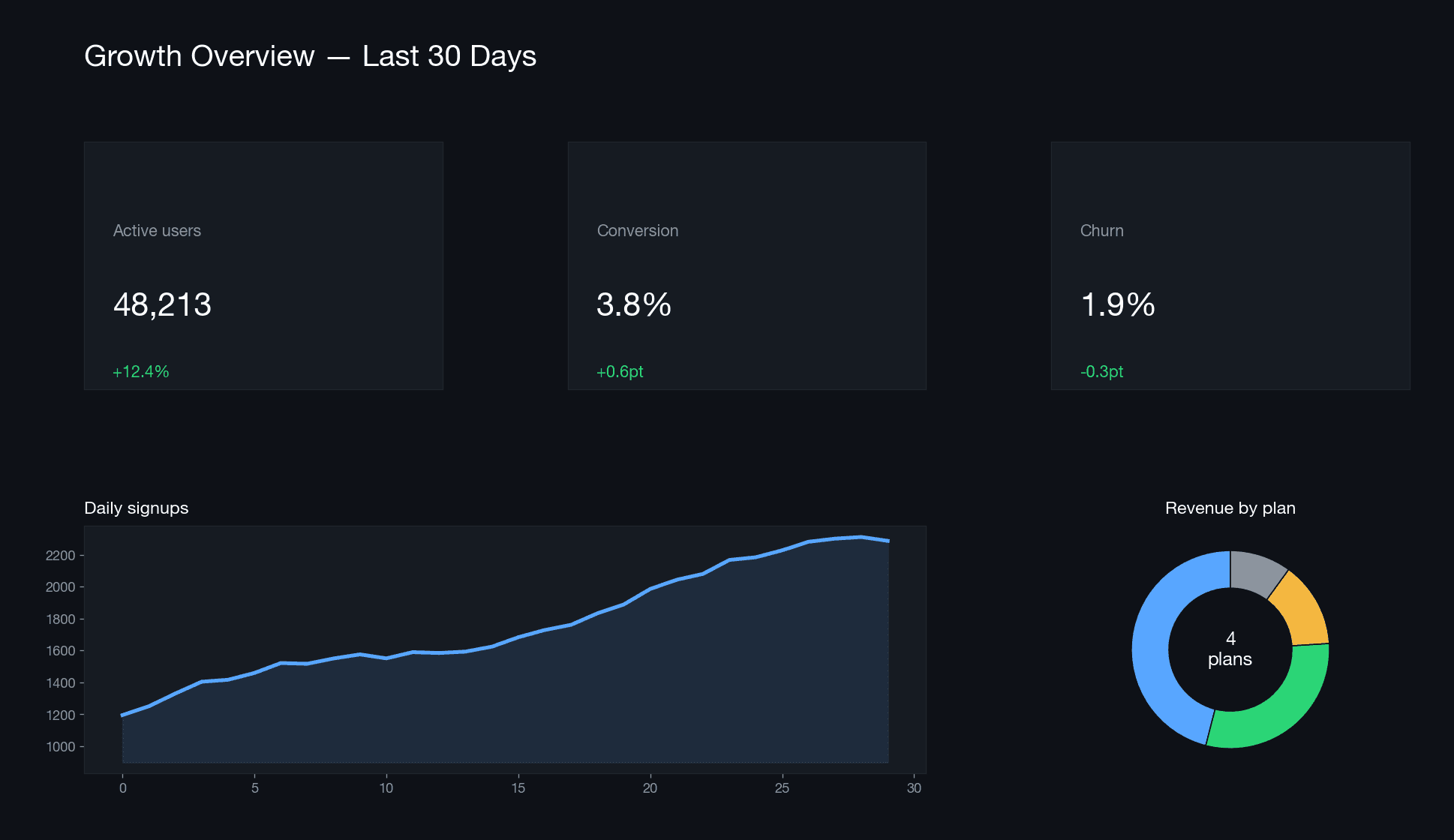
A real run from the generator above, made on 2026-10-22 with fake data. Input screenshot on the left, unedited download on the right.
How to turn a visualization into video
- Screenshot the visualization. A dashboard, a single chart, or a KPI card row — PNG, JPG, or WEBP up to 20MB, taken at the highest resolution your screen allows.
- Upload and review the motion prompt. The default choreographs the full dashboard tour: lines drawing, counters ticking, camera drifting panel to panel, everything else exactly as shown. Swap in your own wording for a different tour order.
- Choose format and create. 16:9 is the natural shape for dashboards; 9:16 fits socials; 1:1 sits well in email. 8, 10, or 15 seconds at 480p or 720p — 10s at 720p costs 640 credits, shown before you spend.
The motion prompt we use
This is the exact prompt pre-filled in the generator — copy it if you want to run it somewhere else:
Bring this data visualization to life: lines draw themselves left to right with a glowing tip, KPI numbers tick upward, pie or donut segments sweep around, and a slow camera drift reveals each panel in turn. Keep every number, label and panel exactly as shown - no new elements. Modern BI aesthetic, smooth easing.
It names the classic dashboard moves — drawing lines, ticking counters, sweeping segments, drifting camera — and locks every number and panel in place while they happen.
Visualizations that animate best
- 2× retina screenshots — the camera drift magnifies every soft edge, so start sharp.
- Clear panel separation: margins between cards read as camera beats; overlapping panels read as noise.
- Dark-mode dashboards shine — glowing lines and light text on dark backgrounds survive motion best.
- 3-6 panels is the sweet spot; a 20-tab enterprise wall becomes a blur at 10 seconds.
- Big KPI digits animate beautifully; 9px axis labels do not — crop them out if they are not load-bearing.
Generated video vs screen recording
Generated from a screenshot
- One clean input; the model handles timing, easing, and camera.
- Identical choreography on every re-render — no re-takes.
- No cursor, no spinners, no accidentally visible neighbor tabs.
- Check the render once against the source before publishing.
Recording your screen
- Pixel-true numbers — what you click is what you get.
- Needs live access to the dashboard and a quiet moment to record.
- Timing depends on you; every mistake is a re-record.
- Cursor and UI chrome are always in frame.
Use recordings when every pixel must be live-verified; use the generator when the job is attention, not audit.
Accuracy boundary
The generator renders your screenshot as video — it does not re-plot data or recompute any number. The prompt holds every label and value in place, and sharp inputs come out faithful, but an AI render can drift a digit during fast motion. Replay the clip against the source before it reaches stakeholders, and keep static screenshots for audited, legal, or regulated figures. This page is not affiliated with Tableau, Power BI, Looker, or Metabase; it animates images you own.
Data visualization maker FAQ
What is a data visualization maker?
A data visualization maker here means a tool that turns an existing data visualization into video. You upload one screenshot of a dashboard, chart, or KPI panel, and the generator produces an 8-15 second clip: lines drawing themselves, numbers ticking upward, segments sweeping around, and a slow camera drift across the panels. It animates the image you already have — no CSV import, no rebuilding the viz in another tool.
Can it animate a whole dashboard, not just one chart?
Yes. The pre-filled motion prompt is written for multi-panel dashboards: the camera drifts across panels in sequence while KPIs tick up and charts draw themselves. For best results use a clean dashboard screenshot with clear panel separation. If you only need one hero chart, the animated chart maker page gives you a tighter bar-by-bar animation.
Which BI tools are supported?
Any tool you can screenshot: Tableau, Power BI, Looker, Metabase, Superset, Google Looker Studio, Amplitude, Mixpanel, or a custom web dashboard. The generator animates pixels, not project files, so nothing is exported or connected — your data never leaves the screenshot.
Do the KPI numbers in the video match my screenshot?
They should, and you should verify once before publishing. The prompt orders the model to keep every number, label, and panel exactly as shown, and high-resolution screenshots come out faithful. But it is an AI render, not a deterministic animation engine — replay the clip against the source before it goes to stakeholders, and keep static screenshots for anything audited or regulated.
How much does a data visualization video cost?
A 10-second 720p video costs 640 credits; a 480p video of the same length starts at 280 credits. The exact price shows on the create button before you generate, and credits are only charged when generation starts.
What resolution and format should I upload?
PNG, JPG, or WEBP, up to 20MB. Take the screenshot at the highest resolution your screen allows — a 2× retina capture of the dashboard animates far cleaner than a compressed export. Dark-mode dashboards work especially well because the glowing lines and counters pop against the dark background.
Does the output video have sound?
Yes. Clips are generated on Seedance 2.5 with audio on, so you get a subtle tech soundtrack baked into the file. Mute it in any editor if your presentation needs silence.
How is this different from recording my screen while clicking through the dashboard?
A screen recording captures your cursor, your loading spinners, and your mistakes. A generated video is a choreographed reveal from a single clean screenshot — no timing to nail, no re-records, and the camera moves are consistent every time. The trade-off is that you check the render once; the trade you give up is nothing.
Related pages: a tight bar-by-bar reveal for a single chart is on the animated chart maker page; turning a revenue chart into a team update is on the sales report video page.
ImageToVideoAI.topis an independent generator, not affiliated with TikTok, ByteDance, Kuaishou, or any social platform. Only upload photos you own or have permission to use, and make sure everyone in a photo is okay with becoming the effect. Clips are AI-generated content — follow each platform's AI-content labeling rules when you post. The credit price is always shown on the create button before you generate; the free monthly try exports with a watermark.