Animated Chart Maker: One Screenshot, One Animated Chart Video
An animated chart maker turns the chart you already have into a video people actually watch. Upload one screenshot — from Excel, Google Sheets, Tableau, Power BI, or a slide — keep the pre-filled motion prompt, and get an 8-15 second animated chart video with sound: bars growing into place, value labels counting up, and a camera push on the number that matters. No re-entering data, no timeline editing, no new charting tool to learn.
What is an animated chart video?
An animated chart video is a short clip where a static chart moves: bars rise from the baseline one after another, line charts draw themselves left to right, pie segments sweep around, and KPI numbers tick upward while the camera drifts across the panels. The format came from motion-graphics explainers, where research showed that an animated reveal holds attention longer than the same chart sitting still on a slide.
Traditionally you needed After Effects or a chart-animation library wired to your raw data. The screenshot route is simpler: the chart you already formatted — colors, labels, branding — becomes the first frame, and the video model animates it while preserving the layout. You keep the exact chart your audience has seen before; it just starts to move.
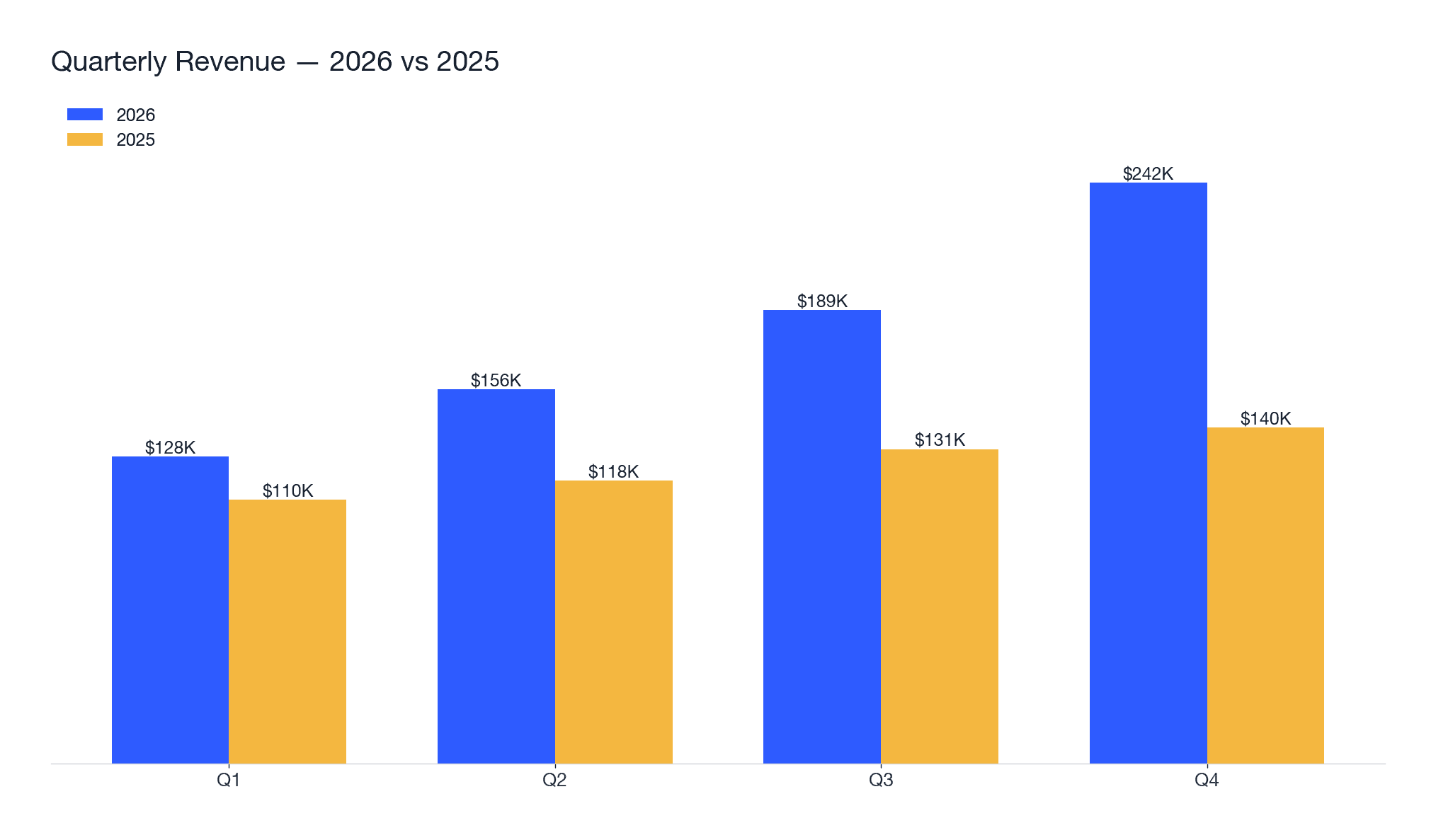
Real sample: grouped bar chart to video
This is a real run from the generator above, made on 2026-10-22 with fake data — the input on the left is exactly what we uploaded, the output on the right is the unedited download.
How to make an animated chart video
- Screenshot your chart. Any tool works — Excel, Google Sheets, Tableau, Power BI, Looker, or a slide. PNG, JPG, or WEBP, up to 20MB. Crop to the chart itself for the cleanest motion.
- Upload it and check the motion prompt. The default directs bars to grow left to right, labels to count up, and the camera to push on the final bar, while keeping every number exactly as shown. Edit freely — a different choreography just needs different wording.
- Pick format and create. 16:9 for decks and reports, 9:16 for TikTok and Shorts, 1:1 for email. Durations of 8, 10, or 15 seconds at 480p or 720p — a 10-second 720p video costs 640 credits, shown on the button before you spend anything.
The motion prompt we use
This is the exact prompt pre-filled in the generator — copy it if you want to run it somewhere else:
Animate this chart screenshot into a clean motion-graphics video: bars grow smoothly one by one from left to right, each value label counts up as it settles, then the camera pushes in gently on the final bar with a soft glow. Keep every axis, label and number exactly as shown - no new elements. Crisp modern infographic style, smooth easing.
The line that matters most is the one ordering the model to keep every axis, label, and number exactly as shown — it is what keeps your chart looking like your chart.
Screenshots that animate best
- High resolution and sharp text — a 2× retina screenshot of the chart beats a compressed copy-paste.
- One chart per image. A dashboard with six panels turns into a busy video; animate the hero chart instead, or use our data visualization maker for full dashboards.
- Crop to the chart area — toolbars, scrollbars, and neighboring cells become noise the model has to ignore.
- High contrast between the data and the background, so bars and lines survive the motion.
- Avoid tiny watermarks or timestamps — the camera push will enlarge them too.
Animated chart video vs static chart
Animated chart video
- Reveals the story in sequence — build-up, comparison, payoff.
- Works where video already lives: Slack, Loom-style updates, socials, video decks.
- Carries sound; the soundtrack does half the “this matters” signaling.
- Takes minutes and credits (280+) instead of an After Effects afternoon.
Static chart
- Pixel-perfect numbers, zero drift risk — still the right call for audited reports.
- Faster to scan at a glance inside a document.
- Silent and motionless in feeds built for video.
- Free and universal — no tool beats a PNG for compatibility.
The practical split: static for the appendix and the audit trail, animated for the moment you need attention — the kickoff, the all-hands, the launch post.
Accuracy boundary: check the numbers before publishing
This tool is an AI render of your screenshot, not a charting engine that re-plots your data. The prompt locks the layout and labels, and clean inputs come out faithful — but video models can occasionally redraw a digit during heavy motion. Two rules keep you safe: watch the finished video once against the source chart before you post it, and keep static versions of any chart that goes into audited financial statements, legal filings, or regulated disclosures. For weekly reviews and social posts, the risk is the cost of one replay.
Animated chart maker FAQ
What is an animated chart maker?
An animated chart maker turns a static chart into a short video: bars grow into place, value labels count up, and the camera moves across the data. This page does it from a screenshot — you upload one image of an existing chart from Excel, Google Sheets, Tableau, Power BI, or a slide, and the generator animates it into an 8-15 second clip with sound.
How do I turn my chart into an animated video?
Three steps: take a screenshot of your chart (PNG, JPG, or WEBP, up to 20MB), upload it above, and press create. The motion prompt is pre-filled — bars growing left to right, labels counting up, a gentle camera push on the final bar — and you can edit it before generating. A 10-second 720p video costs 640 credits; 480p starts at 280 credits.
Which tools can I take the chart screenshot from?
Any of them. Excel, Google Sheets, Tableau, Power BI, Looker, Metabase, a Notion embed, or a chart already sitting in a PowerPoint slide — the generator animates the image itself, so it does not matter which tool produced it. That is the difference from Excel-only converters: the input is the pixels you already see, not a file export.
Do the numbers stay accurate in the video?
Mostly, and you should always check. The prompt orders the model to keep every axis, label, and number exactly as shown, and clean high-resolution screenshots come out faithful. But this is an AI render of your image, not a charting engine — before you publish, watch the video once against the source chart and fix any digit that drifted. Do not use it for audited financial statements or regulatory filings.
Does the animated chart video have sound?
Yes. Videos on this page are generated on Seedance 2.5 with audio enabled, so the clip ships with a light corporate soundtrack and motion sound baked in. If you need silence for a deck, mute the clip in any editor — the animation carries on its own.
What aspect ratio should I pick?
16:9 for slides, reports, and YouTube; 9:16 for TikTok, Reels, and Shorts; 1:1 for email embeds and square feed posts. The chart keeps its own proportions inside the frame, so nothing gets cropped away.
How long does generation take?
Most videos finish within a few minutes. You can stay on the page and watch the progress bar; the finished clip appears in the player with a download button. Busy periods can stretch the wait a little.
Is there a free way to try it?
The general image-to-video generator on the homepage can be tried free once per month with a watermark. The animated chart effect on this page runs on credits from 280 per video, and the exact price is shown on the create button before you generate — nothing is charged for just looking.
Related pages: animate a whole dashboard or KPI panel with the data visualization maker, or turn a revenue chart into a team update with the sales report video generator.
ImageToVideoAI.topis an independent generator, not affiliated with TikTok, ByteDance, Kuaishou, or any social platform. Only upload photos you own or have permission to use, and make sure everyone in a photo is okay with becoming the effect. Clips are AI-generated content — follow each platform's AI-content labeling rules when you post. The credit price is always shown on the create button before you generate; the free monthly try exports with a watermark.